Yeah, I'm a Google fanboy. Here's what they're working on. I like the way they think, though it probably scares some of you.

Showing posts with label google. Show all posts
Showing posts with label google. Show all posts
Thursday, November 19, 2009
Sunday, November 01, 2009
Sort by Magic
Do you use Google Reader? I've written extensively about it here.
Now, Google has this clever new feature Gina pointed out on TWiG, which I think is really slick.
If you're like me, you add many web posts to your feed and sort them by category. This sort is best handled with folders. Well now there's this nifty little feature called "sort by magic" which is an option under the "Folder Settings" pull down.
 What it does is sort to the top of the list items that it thinks you will be most interested in based on your browsing habits. If you've shared, emailed, starred or "liked" certain types of posts in the past, it will elevate similar items to the top of your list. It works best if you have a lot of unread items as it will not show any regard for read vs unread items.

One more way in which Google knows even more about our browsing habits and interests. Ostensibly so they can sell you another ad.
Now, Google has this clever new feature Gina pointed out on TWiG, which I think is really slick.
If you're like me, you add many web posts to your feed and sort them by category. This sort is best handled with folders. Well now there's this nifty little feature called "sort by magic" which is an option under the "Folder Settings" pull down.
 What it does is sort to the top of the list items that it thinks you will be most interested in based on your browsing habits. If you've shared, emailed, starred or "liked" certain types of posts in the past, it will elevate similar items to the top of your list. It works best if you have a lot of unread items as it will not show any regard for read vs unread items.
One more way in which Google knows even more about our browsing habits and interests. Ostensibly so they can sell you another ad.


Tuesday, July 28, 2009
How did you find this blog?
Google Analytics provides interesting tools that allow you to see how dismally attractive your blog is from a statistical standpoint. It's a free tool and an interesting resource.
I have been quite interested in the search terms people use to land here. Below are a list of terms people used in the months of May and June to get here.

Wednesday, December 24, 2008
My Christmas Gift to You
OK, it's not entirely from me. OK, it's not from me at all--at least not in the sense that I created it, I'm just bringing it to your attention.
For all you Firefox users out there, install this clever little add-on. It will enhance your Google search results by providing a context cloud of related terms to your search. Very handy. Hard to describe, just give it a try!
I hope you all have a great Christmas!
For all you Firefox users out there, install this clever little add-on. It will enhance your Google search results by providing a context cloud of related terms to your search. Very handy. Hard to describe, just give it a try!
I hope you all have a great Christmas!
Saturday, July 12, 2008
Yea! Google Browser Sync may be resurrected!
Good news from this Ars Technica article for all who are geeky enough to care:
Please, somebody who's smarter than me, take the open source and make it work for FF3!
[this is a follow up from this post and this post]
The popular Google Browser Sync extension for Firefox, which synchronizes browser settings and information across multiple computers, is now an open source project. Google is distributing the Browser Sync source code under the BSD license and is making it available through a Subversion source control repository on the Google Code website.
This is a major reversal of Google's position on Browser Sync, and it will very likely save the add-on from extinction. Shortly before the official launch of Firefox 3, Google said that Browser Sync development would be discontinued and encouraged users to adopt Mozilla Weave or Foxmarks instead. The availability of the Browser Sync source code, however, will make it possible for the open source software community to collaboratively bring the add-on to the new version of Firefox.
Please, somebody who's smarter than me, take the open source and make it work for FF3!
[this is a follow up from this post and this post]
Friday, June 13, 2008
No More Google Browser Sync
Just minutes after posting a twitter that I'm considering moving to Firefox 3, I read this post from Lifehacker about how Google will be discontinuing support for their own Firefox extension, Google Browser Sync for the new version of Firefox.
This tool, which I have written about before, synchronizes your bookmark and password data across all the computers you use. It usually worked pretty well too, as I have had four browsers all synced together with it.
So, since I've become so accustomed to this feature, I've began to look for other options. Fortunately the article already provided a few suggestions including one for Foxmark, which not only allows synchronization across your several computer's browsers, but allows you to log in from anywhere on any computer and access and edit your bookmarks.
So I've registered one computer so far with Foxmarks and I'll try it out on a couple of other machines and see how it goes. Oh, and Foxmarks is very much looking forward to the release of Firefox 3. One more thing to try to smooth the transition! Do you sync your browsers?
UPDATE: I don't think I will make the move to FF3 until the Silverlight/MLB bug gets fixed. Apparently, Major League Baseball games cannot be watched in FF3!
This tool, which I have written about before, synchronizes your bookmark and password data across all the computers you use. It usually worked pretty well too, as I have had four browsers all synced together with it.
It was a tough call, but we decided to phase out support for Browser Sync. Since the team has moved on to other projects that are keeping them busy, we don't have time to update the extension to work with Firefox 3 or to continue to maintain it.
So, since I've become so accustomed to this feature, I've began to look for other options. Fortunately the article already provided a few suggestions including one for Foxmark, which not only allows synchronization across your several computer's browsers, but allows you to log in from anywhere on any computer and access and edit your bookmarks.
We're big Foxmarks fans around here—in fact, we always thought that Foxmarks beat Google Sync when it came to bookmarks.
So I've registered one computer so far with Foxmarks and I'll try it out on a couple of other machines and see how it goes. Oh, and Foxmarks is very much looking forward to the release of Firefox 3. One more thing to try to smooth the transition! Do you sync your browsers?
UPDATE: I don't think I will make the move to FF3 until the Silverlight/MLB bug gets fixed. Apparently, Major League Baseball games cannot be watched in FF3!
Tuesday, April 01, 2008
Plaxo solves my sync issues
If you have multiple computers in several locations, and portable "smart" devices that carry a lot of the same information as your computers, you'll drive yourself crazy trying to keep the data on all devices current.
Keeping my data current has been an ongoing quest for me since working on a Windows PC at home and a Mac at work. At first it didn't matter much to me. Then I saw how valuable keeping mailboxes synchronized could be. Soon bookmarks became an issue. For a while, I would export my bookmarks from my work computer by html to a zip(!) drive, carry it home, import it into my home browser.
Over the years, my expectations have grown regarding keeping my devices in sync. My device quantity has grown as well. I currently work from a PowerBook G4, a desktop G5, a Windows XP P4, and now, thanks to my dad off-loading his Treo, a Windows Mobile device.
I have already written about the value of using the Google Browser Sync plugin for Firefox. This not only uses your existing Google account to keep your bookmarks synchronized across however many computers you want, it also will sync your history, cache, and site logins and passwords. This is very handy!
I also sychronize my Mac iCal data with my Google calendar using Spanning Sync. This allows me to update shared calendars that are shared with our staff, published publicly for our volunteers to see, and personal family calendars with my wife.
Further, my iCal, Address Book, Yojimbo, Mail settings, Transmit Favorites, Notes, Dashboard Widgets, and Keychains between my two Macs are synchronized through .Mac.
All this synchronizing is a delicate balance to maintain. One innocent failure and entire calendars are duplicated, erased, or corrupted in some other way. The problem to date has been the Treo. Windows Mobile does not make any software to synchronize data with Macs. Third party apps I have tried (three to be exact) have failed miserably to sync to Windows Mobile.
I don't care about my calendar or bookmarks syncing. All I care about is my contact list. I just want to see that show up on my phone and then when I make an edit on my phone, see it reflected back into my address book on my computer(s).
After trying yet another attempt at syncing with a third party app, I decided it wasn't meant to be. I seriously began considering the iPhone. (But I'm with Sprint!)
So PLAXO steps in. A bizarre web site that syncs all of your social web apps: blogger, facebook, flickr, twitter, even Amazon wish lists and puts them into one place. It also synchronizes your calendar (perfectly, I might add) AND your contact list. This wasn't important to me, and frankly scared me a little bit when I pushed the sync button the first time (what if it disrupted my perfect little world of sync harmony?), but I like to try new gadgets and services, and couldn't resist. I pushed the "go" button.
I'm glad I did! It worked perfectly, and continues to work with no troubles. Then I discovered this little sync tab on their site that included all these other services--including Windows Mobile. Really? I thought. Since it worked so well with my Mac, I thought I'd try it. So I took my Treo cradle home, put it on my home computer, found my copy of Office 2003, installed Outlook, downloaded the updates to outlook, and ....success! I now have two-way syncing from my phone to my Address Book in a very unusual way.
Track this "signal path" for adding a new contact to my Address Book beginning with my desktop at church:
Desktop -->thru .Mac --> Laptop
Laptop --> thru Plaxo --> Outlook on PC at home
Outlook --> sync services --> Treo
The cool thing about it is that if I make an edit or a change on my phone, I can stick it in the cradle, and within 30 seconds, my laptop is updated with the new data. I feel like in some ways the whole thing is a hack, a huge bandaid that really only partially works, because it only synchronizes my contacts, (so far) nothing else.
However, if you are not on Plaxo, I would recommend checking it out--even if you only use the sync services.
Keeping my data current has been an ongoing quest for me since working on a Windows PC at home and a Mac at work. At first it didn't matter much to me. Then I saw how valuable keeping mailboxes synchronized could be. Soon bookmarks became an issue. For a while, I would export my bookmarks from my work computer by html to a zip(!) drive, carry it home, import it into my home browser.
Over the years, my expectations have grown regarding keeping my devices in sync. My device quantity has grown as well. I currently work from a PowerBook G4, a desktop G5, a Windows XP P4, and now, thanks to my dad off-loading his Treo, a Windows Mobile device.
I have already written about the value of using the Google Browser Sync plugin for Firefox. This not only uses your existing Google account to keep your bookmarks synchronized across however many computers you want, it also will sync your history, cache, and site logins and passwords. This is very handy!
I also sychronize my Mac iCal data with my Google calendar using Spanning Sync. This allows me to update shared calendars that are shared with our staff, published publicly for our volunteers to see, and personal family calendars with my wife.
Further, my iCal, Address Book, Yojimbo, Mail settings, Transmit Favorites, Notes, Dashboard Widgets, and Keychains between my two Macs are synchronized through .Mac.
All this synchronizing is a delicate balance to maintain. One innocent failure and entire calendars are duplicated, erased, or corrupted in some other way. The problem to date has been the Treo. Windows Mobile does not make any software to synchronize data with Macs. Third party apps I have tried (three to be exact) have failed miserably to sync to Windows Mobile.
I don't care about my calendar or bookmarks syncing. All I care about is my contact list. I just want to see that show up on my phone and then when I make an edit on my phone, see it reflected back into my address book on my computer(s).
After trying yet another attempt at syncing with a third party app, I decided it wasn't meant to be. I seriously began considering the iPhone. (But I'm with Sprint!)
So PLAXO steps in. A bizarre web site that syncs all of your social web apps: blogger, facebook, flickr, twitter, even Amazon wish lists and puts them into one place. It also synchronizes your calendar (perfectly, I might add) AND your contact list. This wasn't important to me, and frankly scared me a little bit when I pushed the sync button the first time (what if it disrupted my perfect little world of sync harmony?), but I like to try new gadgets and services, and couldn't resist. I pushed the "go" button.
I'm glad I did! It worked perfectly, and continues to work with no troubles. Then I discovered this little sync tab on their site that included all these other services--including Windows Mobile. Really? I thought. Since it worked so well with my Mac, I thought I'd try it. So I took my Treo cradle home, put it on my home computer, found my copy of Office 2003, installed Outlook, downloaded the updates to outlook, and ....success! I now have two-way syncing from my phone to my Address Book in a very unusual way.
Track this "signal path" for adding a new contact to my Address Book beginning with my desktop at church:
Desktop -->thru .Mac --> Laptop
Laptop --> thru Plaxo --> Outlook on PC at home
Outlook --> sync services --> Treo
The cool thing about it is that if I make an edit or a change on my phone, I can stick it in the cradle, and within 30 seconds, my laptop is updated with the new data. I feel like in some ways the whole thing is a hack, a huge bandaid that really only partially works, because it only synchronizes my contacts, (so far) nothing else.
However, if you are not on Plaxo, I would recommend checking it out--even if you only use the sync services.
Monday, February 18, 2008
Streetview comes to Raleigh
This is really cool. And no, I'm not concerned about privace issues--not until they come into my house and start taking Panoramic pictures of my living room.
Google has updated their streetview maps in 12 new locations. Here is a screen shot of my house. Looks like I was probably at work when the Google video van came by.

Google has updated their streetview maps in 12 new locations. Here is a screen shot of my house. Looks like I was probably at work when the Google video van came by.

Sunday, February 17, 2008
Using RSS
If you haven't tried using an RSS reader, I would strongly suggest you look into it. There are a variety of readers available for free (just type "RSS reader" into a Google search and you'll be able to choose from many). Readers are frequently built into email apps like Thunderbird or Mac's Mail.app, or you can find online varieties, where you log into a single web service that catalogs all your feeds for you.
RSS has been around for a while. For the uninitiated, RSS stands for Real Simple Syndication. It is a simple (oddly enough) and automated way for you to keep up with some of your most frequented sites.
I resisted using a reader for a long time. Part of this was because I enjoyed going to the various blogs I liked to read, or news sites, or fun sites, and browse through them. After a while, however, selecting "open all in tabs" when you have 30 bookmarks under one subject heading not only takes forever to load, but it can become cumbersome to go through each site, only to find that there is nothing new in half of them since the last time you looked.
The beauty of RSS is that once you subscribe to a page, the data comes to you. Whenever there's a new blog post, a new news story, or whatever it is your favorite site is pushing through, you know about it because it appears in your feed. No need to continually check web sites over and over.
I first gave RSS a try at home in our Thunderbird email client. More recently with the addition of RSS in Leopard's version of Mail, I tried it in there for a while. The cool thing about the mail client is that you can be offline and read the feeds because they are stored locally for a period of time.
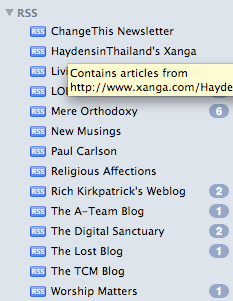
I didn't explore using Mail for my reader for very long, because I lost my settings when my HD crashed and I just never brought it back. You can see below some of the feeds I had. The thing I never explored in Mail's reader is how if at all these feeds can be organized. I never got far enough to see if you can create folders to put these various feeds in.
In steps Google.
Google reader has become my RSS reader of choice. Not only does it allow for organization of feeds into user-specified subjects, it lets me share my favorites (in fact, if you haven't noticed, I've installed a widget on the top right column of this page that shows my recently shared RSS items), email the articles directly from the reader, and customize its interface through Firefox extensions such as Better Reader. By the way, you can subscribe to my shared items by following this link.
So, for all of you wondering how to set up and subscribe to your very own reader, let me show you! I recently set up my wife's Gmail account and took screen shots along the way.
Now whenever someone updates their blog, you'll know if it because it will appear in this folder.
There are many more options and tricks with Google reader, many of which are shown to you from the main Reader page. I think it's a snazzy reader.
If you set up an account and begin sharing your favorite posts, send me your subscription url so I can add that to my reader!
RSS has been around for a while. For the uninitiated, RSS stands for Real Simple Syndication. It is a simple (oddly enough) and automated way for you to keep up with some of your most frequented sites.
I resisted using a reader for a long time. Part of this was because I enjoyed going to the various blogs I liked to read, or news sites, or fun sites, and browse through them. After a while, however, selecting "open all in tabs" when you have 30 bookmarks under one subject heading not only takes forever to load, but it can become cumbersome to go through each site, only to find that there is nothing new in half of them since the last time you looked.
The beauty of RSS is that once you subscribe to a page, the data comes to you. Whenever there's a new blog post, a new news story, or whatever it is your favorite site is pushing through, you know about it because it appears in your feed. No need to continually check web sites over and over.
I first gave RSS a try at home in our Thunderbird email client. More recently with the addition of RSS in Leopard's version of Mail, I tried it in there for a while. The cool thing about the mail client is that you can be offline and read the feeds because they are stored locally for a period of time.
I didn't explore using Mail for my reader for very long, because I lost my settings when my HD crashed and I just never brought it back. You can see below some of the feeds I had. The thing I never explored in Mail's reader is how if at all these feeds can be organized. I never got far enough to see if you can create folders to put these various feeds in.

In steps Google.
Google reader has become my RSS reader of choice. Not only does it allow for organization of feeds into user-specified subjects, it lets me share my favorites (in fact, if you haven't noticed, I've installed a widget on the top right column of this page that shows my recently shared RSS items), email the articles directly from the reader, and customize its interface through Firefox extensions such as Better Reader. By the way, you can subscribe to my shared items by following this link.
So, for all of you wondering how to set up and subscribe to your very own reader, let me show you! I recently set up my wife's Gmail account and took screen shots along the way.
How to set up Google Reader
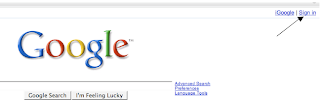
First, you'll need to go to the Google home page. Once there click the "sign in" tab in the upper right.
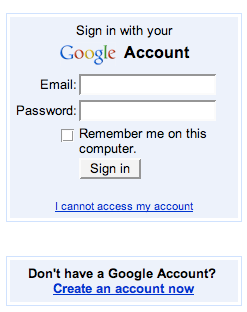
If you don't have a Gmail address or a Google account already in place, you can create one here, otherwise, enter your Gmail address and password.
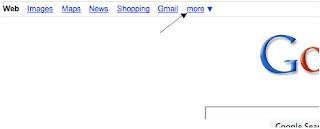
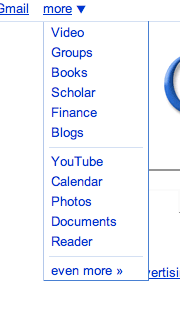
Once logged in, click on the "more" tab.
Click on "Reader" at the bottom of the list.
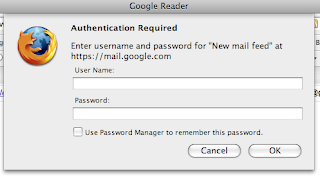
You'll need to set up your reader account by verifying your Google account info again.
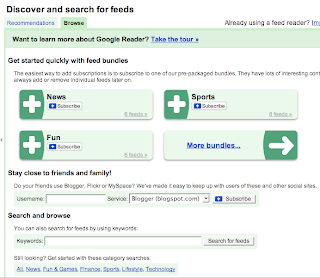
At this point you can add some suggested subscriptions. These are sites that Google has thrown together by category that are of general interest. Add what you'd like.
Next, go to your favorite news site, blog, etc, and look either for text on the page that says "subscribe using RSS" or push this little button if your browser supports it in the right hand side of the location window.

If you are given a list of options from which program you would like to use to assign this feed, be sure to select Google Reader.
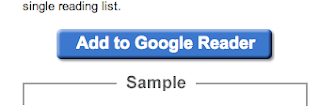
Click "Add to Google Reader"
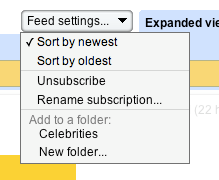
Once added, you can decide if you'd like to keep it as is, unsubscribe or organize your feed into a folder you specify. If the folder you'd like isn't there, select "New Folder..."
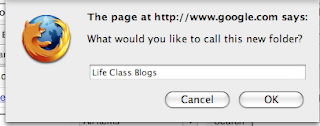
Finally, label the folder name you'd like and your feed will live there.

If you don't have a Gmail address or a Google account already in place, you can create one here, otherwise, enter your Gmail address and password.

Once logged in, click on the "more" tab.

Click on "Reader" at the bottom of the list.

You'll need to set up your reader account by verifying your Google account info again.

At this point you can add some suggested subscriptions. These are sites that Google has thrown together by category that are of general interest. Add what you'd like.

Next, go to your favorite news site, blog, etc, and look either for text on the page that says "subscribe using RSS" or push this little button if your browser supports it in the right hand side of the location window.

If you are given a list of options from which program you would like to use to assign this feed, be sure to select Google Reader.
Click "Add to Google Reader"

Once added, you can decide if you'd like to keep it as is, unsubscribe or organize your feed into a folder you specify. If the folder you'd like isn't there, select "New Folder..."

Finally, label the folder name you'd like and your feed will live there.

Now whenever someone updates their blog, you'll know if it because it will appear in this folder.
There are many more options and tricks with Google reader, many of which are shown to you from the main Reader page. I think it's a snazzy reader.
If you set up an account and begin sharing your favorite posts, send me your subscription url so I can add that to my reader!
Friday, September 14, 2007
540 extension added to Google Maps
FINALLY, directions from our house to somewhere in north Raleigh will start out correctly. No longer will we be directed all the way over the Triangle Town Blvd to pick up 540 but the maps have now been updated with the nine-month old extension that goes down to 64. What's interesting is that if you click over to the hybrid or satellite view, you'll see 540 still under construction. Also, the western side of 540 into RTP has not been updated. A bit of lag time at Google Maps...


Wednesday, January 10, 2007
I am a Google junkie
If Google ever crashed, I'd be in trouble. I was just thinking about all the Google services I use:
- This blog lives on a Google server somewhere
- I have three gmail accounts
- I use the Google servers to sync my firefox bookmarks/passwords/cookies between my home computer and work computer
- My default map is Google Maps
- I have made phone calls from the Google map to a business where it says "click here to call"
- I have texted myself data from Google maps about a business address/phone number
- I enjoy using Google Earth a lot--it's a great teaching tool for the kids as well (version 4.0 was just released)
- I have gone completely to Google Calendar, which very soon will be able to fully sync with iCal.
- It's my default search in Firefox
- I have an adsense account
- I use their Docs and Spreadsheets (though I actually had an account with Writely before Google purchased it)
- I manage my digital photos with Picassa
- I distribute my photos online with Google/Picassa picture share
- I love doing searches using scholar.google.com
- I use Google chat
- Google News is one of my news bookmarks
- Froogle is the first place I search when I want to buy a product I don't normally purchase
- I have subscribed to usenet groups through Google
- I like to search through Google Video
Subscribe to:
Posts (Atom)